


VistaCreate: AI Graphic Design
4.31.67K Reviews
App Specs
- Version
- 2.49.0
- Updated On
- License
- Free
- Downloads
- 5,000,000+
- Developer
- Crello Ltd.
- Categories
- Art & Design
- Platform
- Android, iOS
Screenshots
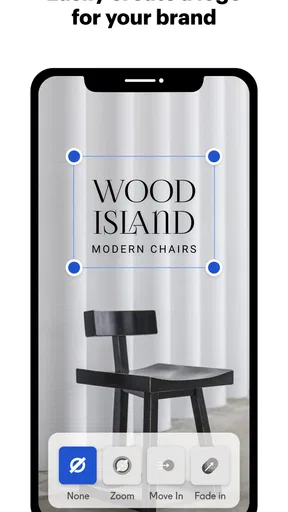
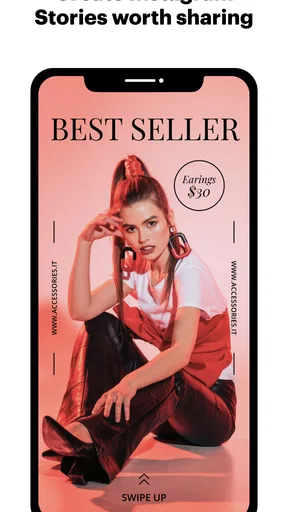
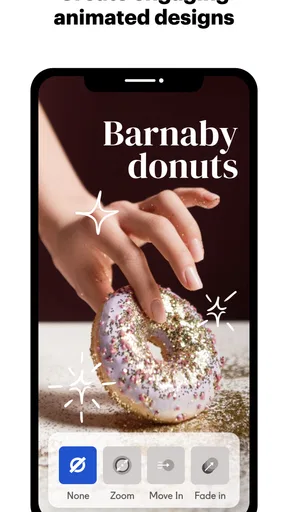
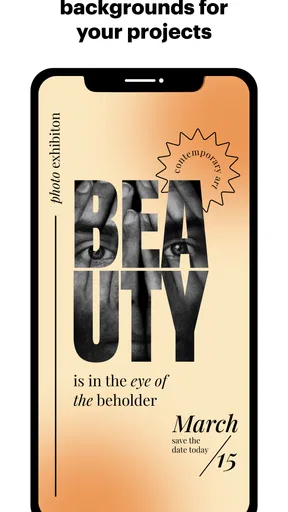
 Analysis by AppCompare
When a design need pops up in a shared household, the useful question is often not “Can I make something impressive?” but “Can I finish a clear, good-looking graphic without taking over the family computer?” That is the appeal I see in VistaCreate: it is an art and design app for making visual work approachable, especially when the job is a social post, invitation, notice, or simple promotional piece rather than a complex illustration.
I’d consider it for a household where one person makes a school-club announcement, another prepares a small event invitation, and someone else needs a quick image for a community page. The same template-led approach can serve all three, but shared use also calls for a little care: a design app can hold personal projects and drafts, so I would treat each person’s account and work as theirs rather than assuming a shared device means shared access or shared ownership.
One device, several kinds of projects
A realistic example is a busy evening before a neighborhood bake sale. I might choose a flyer layout, replace the sample wording with the time and location, adjust the colors to suit the event, and make a matching social graphic from the same visual idea. That is a more practical use of a template library than trying to invent a layout from a blank screen while also keeping track of the details.
The benefit is not that every result will look unique automatically. Templates give you a starting structure, but the final graphic still depends on readable wording, sensible image choices, and restraint. I would put the event name and key information first, then remove decorative elements that compete with them. On a phone, it is easy to keep adding small details because they look attractive up close; stepping back and checking the whole composition helps prevent a crowded result.
Account boundaries matter on a shared phone
If several people in a home take turns using one phone or tablet, I would agree on a simple routine before anyone starts designing: use the right person’s account, avoid editing another person’s in-progress project, and sign out or switch accounts when appropriate. I would not treat a shared device as proof that the app offers household profiles or parental controls. The safer assumption is that each person should manage their own access and be deliberate about what they save or share.
This is especially useful when a project contains a child’s name, a school event, or a family address. Before posting or sending a finished graphic, I’d check whether the visible text includes information that should stay within the intended group. That practical review is worthwhile regardless of the design tool, but template editing can make it easy to focus on color and layout while overlooking what the finished image reveals.
Who will get the most from it?
I see the strongest fit for people who need presentable visuals without wanting to learn a full professional design workflow. A parent organizing a birthday, a volunteer making a club notice, or a small seller preparing a basic social graphic can all benefit from starting with an existing layout and changing only what matters. It is also handy when the same person handles several small creative tasks and would rather work from a consistent visual starting point than begin every design from scratch.
Worth Reading Before You Choose

EA SPORTS FC Mobile 26 Is a Bigger Football Game, but It Takes Time

Flipboard Shows What News Apps Must Do Beyond the Feed

Switching to Android Auto Means Rethinking Your Driving Routine

Google Calendar Makes a Crowded Week Easier to Manage

Ludo King Makes the Most of the Minutes Between Plans

Baby Panda World Brings Quick Play to Modern Phones, but Its Game Library Feels Busy
On the other hand, I would look elsewhere if the job depends on precise print-production controls, highly specialized illustration tools, or exact brand-management workflows. A template-based mobile editor is convenient, but convenience is not the same as the detailed control offered by more demanding desktop design software. For a one-off poster, that trade-off may be sensible; for a production-heavy role, it may become frustrating.
Getting Started with VistaCreate
Jumping into VistaCreate is like entering a candy store for creatives. The app greets you with a clean, intuitive interface that doesn’t bog you down with unnecessary clutter. Whether you’re a newbie or a seasoned designer, you’ll find everything you need right at your fingertips.
Signing up is a breeze. You can use your email or social media accounts, and voila, you’re in! Once inside, you’re presented with a plethora of templates tailored for social media, marketing materials, and even personal projects. It’s like having a personal design assistant that’s always ready to help.
Exploring the Features
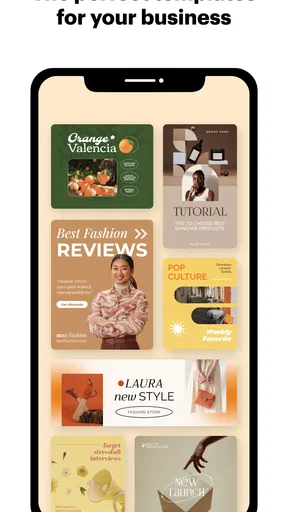
Now, let’s dive into the features. VistaCreate offers a vast library of templates, images, and fonts. Seriously, it’s like they’ve thought of everything. Need a chic Instagram post? Done. Crafting a professional flyer? Easy-peasy.
The editing tools are straightforward and user-friendly. You can drag and drop elements, resize images, and tweak text with just a few taps. One feature I particularly loved was the layering option. It gives you the flexibility to arrange elements just the way you want, creating depth and visual interest in your designs.
And let’s talk about the image library. It’s stocked with millions of photos and illustrations, so you’ll always find the perfect fit for your project. Plus, the advanced search function lets you filter by category, color, and style. It’s like having a design guru guiding your every move.
Designing on the Go
If you’re like me and love to work on the go, VistaCreate’s mobile app is a game-changer. It syncs seamlessly with your desktop projects, ensuring you can pick up right where you left off. Whether you’re commuting or lounging on your couch, your creative process is never interrupted.
The app is optimized for mobile use, meaning you won’t be squinting at your screen or fumbling with controls. Everything is designed to be as intuitive and accessible as possible, so you can focus on what really matters—creating stunning designs.
Collaboration and Sharing
One of the standout features of VistaCreate is its collaboration capabilities. You can easily share projects with teammates or clients and even assign roles for editing and reviewing. It’s perfect for those group projects or when you need a second set of eyes on your work.
Sharing your designs is just as simple. With a few clicks, you can export your work in various formats or share directly to social media platforms. It’s all about making your creative process smooth and hassle-free.
Practical choices before you commit
VistaCreate is free to download, with optional in-app purchases ranging from $3.49 to $120.00 per item. I’d start by building a real project before paying for anything: try the template and editing workflow you expect to use, then check whether the available options meet your needs. This is a more useful test than browsing designs without a specific task in mind, because your actual project will show whether the app’s choices and controls suit your habits.
For a household, it also helps to decide who is responsible for the final export and where it will be shared. A teenager could prepare a club graphic, for instance, while an adult checks names, dates, and audience before it is posted. That is a sensible division of responsibility, not a substitute for supervision or a feature I would assume the app provides. The app is rated Teen, so families should still make their own decision about whether its content and account use fit the young person using it.
Choosing between templates and other design tools
Compared with opening a blank canvas in a more technical editor, VistaCreate’s template-first approach gets me to a usable draft faster. That matters for recurring, modest tasks: a weekly class reminder, a menu update, or a social post that needs to look tidy but does not require custom artwork. Its search filters can also narrow the visual choices by category, color, and style, which is helpful when I know the mood I want but cannot name a particular design technique.
The trade-off is that templates can make unrelated projects look alike if I accept the default arrangement each time. I would change more than the headline: adjust the image, simplify the decoration, and use the layering controls to make the information hierarchy clearer. If a project needs exact vector paths, detailed photo retouching, or meticulous print setup, a specialist desktop program is a better fit. If I only need a quick graphic, that extra depth can be unnecessary overhead.
Small workflow habits that improve the result
One practical habit is to write the finished wording before choosing a layout. A short title and a few essential details are easier to fit cleanly than a paragraph squeezed into a template designed for a headline. I also check text at the scale where people will actually see it: a graphic that looks legible while zoomed in may become hard to read as a small social image.
When working with layers, I use them to solve a specific problem rather than simply to add depth. Moving a background image behind a translucent or solid text area, for example, can make important wording easier to scan. I would also keep a clear distinction between a draft and a share-ready design by reviewing spelling, dates, and contrast before exporting. These checks take little time and prevent the common mistake of polishing appearance while missing a practical detail.
People often ask whether they need design experience to begin. In my view, no: the templates and direct editing controls give beginners a reasonable route to a finished graphic. The more useful question is whether they are comfortable making choices about wording, image fit, and visual simplicity. The app can help with structure, but it cannot decide which event details matter most or whether the chosen picture communicates the right tone.
Another consideration is whether it suits a mostly mobile workflow. I find the phone format appealing for quick edits and for continuing a project away from a desk, while a larger screen is more comfortable for careful alignment and reviewing a complicated layout. The app’s stated minimum operating-system requirement is version 7.0, and its current version is 2.46.13; I would check that a device meets the requirement before planning to use it there.
Crello Ltd. develops the app, which has an average rating of 4.4 from around 47,000 ratings, with roughly 1,600 written reviews and over 5 million installs. Those figures suggest that it has found a broad audience, but I would still judge it by whether its workflow suits my own projects. It was released on October 24, 2019, and its Teen age rating is worth considering when a shared household device is used by younger family members.
A household decision, not a one-size-fits-all answer
For a home that needs occasional invitations, announcements, and social graphics, I’d be comfortable recommending VistaCreate as a convenient starting point. It brings templates, image choices, text editing, and layering into a mobile-friendly design process, so a person can handle a small visual task without first learning a specialist tool. The strongest results come when users treat the template as a framework and make deliberate choices rather than accepting every decorative default.
I would skip it as the main tool for a household member whose work demands fine-grained production control, or for anyone who dislikes template-led design and wants to build every element from scratch. I would also avoid assuming that one shared login is the right arrangement for everyone; sensible account boundaries and a quick review before sharing matter more than convenience. For ordinary creative chores, though, it offers a useful middle ground between a basic image editor and a full desktop design suite.
Final Thoughts
All in all, VistaCreate is a powerhouse of a graphic design tool. It strikes the perfect balance between functionality and ease of use, making it accessible to everyone from beginners to pros. Whether you’re crafting a simple social media post or a complex marketing campaign, VistaCreate has got your back.
So, if you’re ready to unleash your creativity without the fuss, give VistaCreate a try. It’s like having a design studio right in your pocket—and believe me, you won’t be disappointed.
Pros
- User-friendly interface for beginners.
- Extensive library of design templates.
- Affordable pricing for premium features.
- Supports multiple file formats for export.
- Regular updates with new features.
Cons
- Limited advanced editing tools.
- Some features require internet access.
- Occasional app crashes reported.
- Free version has watermarked exports.
- In-app purchases can be pricey.
FAQs for VistaCreate: AI Graphic Design
What is VistaCreate and how does it work?
VistaCreate is a graphic design app that offers tools for creating various visual content, such as social media graphics, presentations, and marketing materials. It provides users with a wide range of templates, images, and fonts to customize their designs. The app is user-friendly and suitable for both beginners and experienced designers.
Is VistaCreate free to use or does it require a subscription?
VistaCreate offers both free and paid versions. The free version provides access to a basic set of design tools and resources, while the Pro version includes additional features such as premium templates and an expanded library of design elements. The Pro version requires a subscription, offering monthly or yearly payment options.
Can I use VistaCreate on multiple devices?
Yes, VistaCreate is available on multiple platforms, including Android and iOS devices, as well as web browsers. Users can seamlessly switch between devices as their designs are saved to the cloud, allowing for easy access and editing from any device with an internet connection.
What types of design projects can I create with VistaCreate?
VistaCreate supports a variety of design projects, including social media posts, posters, flyers, business cards, and more. The app offers a vast array of templates tailored to different formats and purposes, making it easy for users to create professional-looking designs for any occasion or need.
Does VistaCreate offer customer support if I encounter issues?
VistaCreate provides customer support through various channels, including a help center with articles and video tutorials, as well as email support for more specific inquiries. Users can also access a community forum to share tips and ask questions from other VistaCreate users. Pro subscribers typically receive prioritized support.


